Timer timeline
Review the day's entries and act on your sessions from the Timer screen.
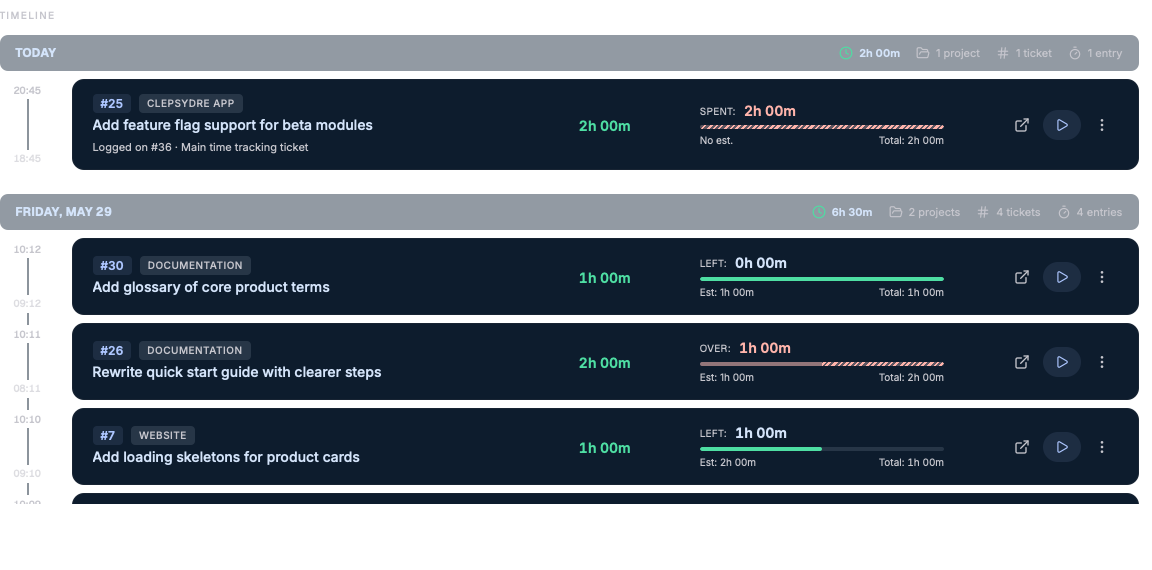
Below the timer controls, the Timeline section lists your Redmine time entries, grouped by day, with a live row for the running timer.
Day headers
Each day shows a header (Today, Yesterday, or the date) along with totals:
- number of hours logged;
- number of projects involved;
- number of tickets;
- number of entries.
Row content
Each entry shows, among other things:
- the start and end times;
- the ticket #ID, the project, and the subject;
- the session duration;
- progress against the estimate, when available;
- the comment (the automatic cross-ticket prefix is hidden);
- the cumulative time spent.
The in-progress entry
While the timer runs, an extra row appears at the top, highlighted, with an "In progress" badge and the live elapsed time. This row offers no actions: it simply reflects the active timer.
Actions on a past entry
The actions offered allow you to:
-
Open in Redmine;
-
Start timer on that ticket;
If a timer is already running on a different ticket, clicking an entry first triggers the stop-and-log dialog, so you don't lose the current time.
If Reuse last ticket comment is enabled, the row's comment is reused as a draft.
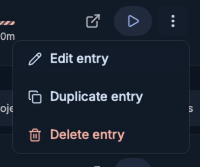
A past entry's (⋯) menu offers:
- Edit entry;
- Duplicate entry;
- Delete entry (with confirmation).
Load more
The Load more button fetches older Redmine entries, page by page.