Usage
Day timeline
View, add, and edit time entries for the selected day.
The Day Timeline shows, on a horizontal track, all the time entries of the day selected in the calendar. It also lets you add or fix entries directly.

Reading the track
- Entries are positioned by their start and end time.
- Each block shows the ticket, the project, and the duration.
- Any overlaps or gaps during the day are visible at a glance.
- A day total is recalled.
Add an entry
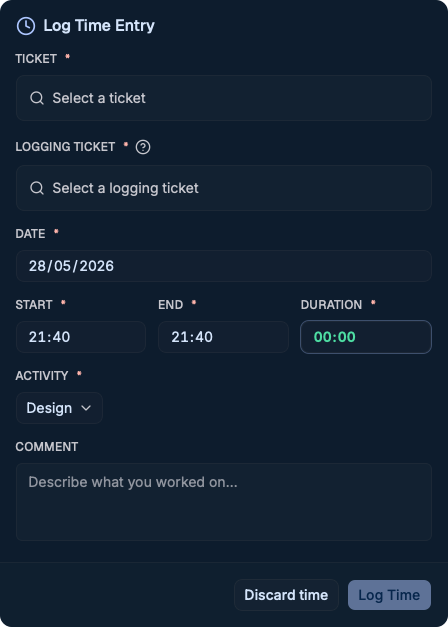
The Add button opens the dialog to create a new entry for the displayed day: choose the ticket, the activity, the time range (or duration), and a comment, then save to Redmine.
Edit an entry
Clicking an existing entry opens its edit dialog. You can adjust the time, duration, activity, or comment, then save. Changes are propagated to Redmine.
The day timeline and the timer timeline act on the same Redmine entries: a change made on one side appears on the other after synchronization.