Logging on a separate ticket
Track one ticket while logging time onto another ticket.
Sometimes you work on a specific ticket but must log the time onto a different ticket (a billing ticket, a parent ticket, a team ticket…). Clepsydre lets you decouple the tracked ticket from the logging ticket.
This feature depends on the setting Settings > Time Tracking > Allow logging on a different ticket. If this setting is disabled, the Log on section is hidden and time is always logged on the active ticket.
The "Log on" panel
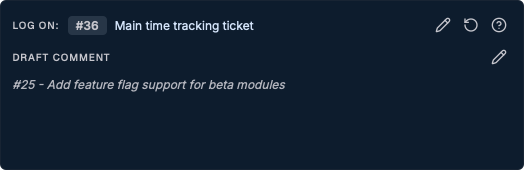
On the active ticket, the "Log on" panel lets you choose a different logging ticket.
- First select the ticket you are working on as usual (active ticket).
- In Log on, click the edit icon to open "Choose logging ticket".
- Search for and select the destination ticket.
The timer stays on the active ticket, but the time will be logged onto the chosen ticket.

To go back to the classic behavior, click Use active ticket: time will be logged onto the tracked ticket again.
The comment is completed automatically
This is the key part of the feature. When the logging ticket differs from the tracked ticket, Clepsydre automatically prefixes the comment with a first line recalling the ticket you actually worked on:
#1234 - Current ticket subjectThis way, even if the time is logged elsewhere, the trace of the original ticket stays visible in the time entry comment. The prefix is handled automatically:
- it is added when you log onto a different ticket;
- it is updated if you change the tracked ticket;
- it is hidden in the timeline and history UI to keep things readable.
Display in the timeline
In the timeline, an entry logged onto another ticket shows a note like "Logged on #ID · Ticket", so you can spot cross-ticket logging at a glance.

Memory
When you re-select a previously tracked ticket, Clepsydre restores the last logging ticket used for it, based on the timeline history. You therefore don't have to reconfigure logging every time.