Using the timer
Start, pause, resume, stop, and reset the timer.
The timer is the central area of the Timer screen. Once you select a ticket, you control time tracking with a few simple actions.
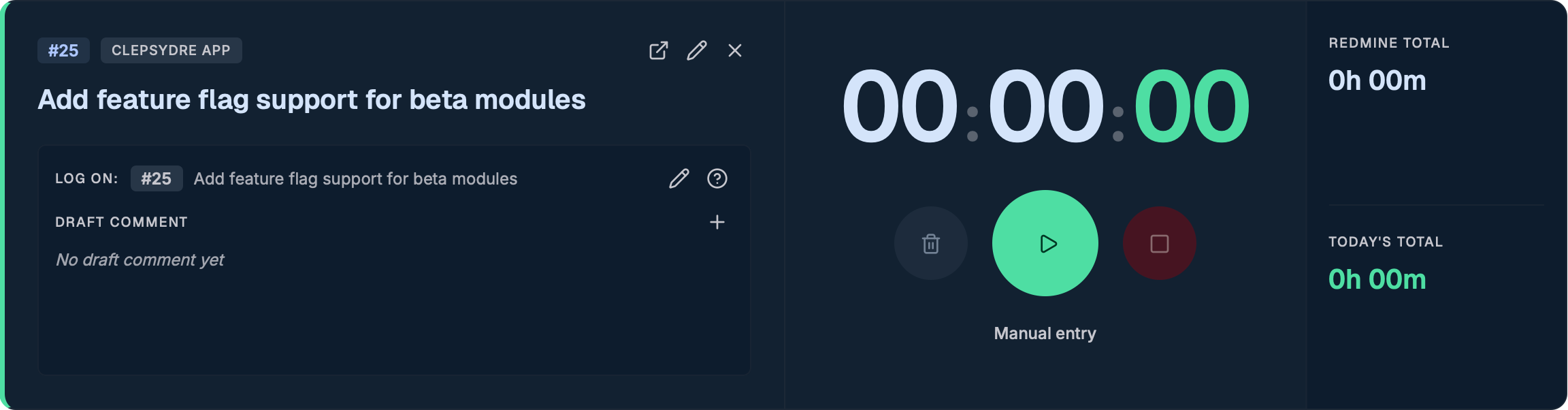
Select a ticket
Before starting, select the ticket you are working on:
- Use the search bar (Search tickets by ID, project, or title…).
- Click a result to make it the active ticket.
While no ticket is selected, the app shows "Select a ticket to start tracking time".
If Start timer on ticket selection is enabled in settings, the timer starts (or resumes) automatically as soon as you select a ticket.
Timer actions
| Action | Description |
|---|---|
| Start | Starts tracking from now. Available when the timer is stopped. |
| Pause | Pauses the count without losing the elapsed time. |
| Resume | Resumes counting after a pause. |
| Stop | Stops the timer and triggers time logging (see below). |
| Reset | Discards the current session without saving any time. |
Adjust the start time
While the timer is running, a time field lets you adjust the start time if you began tracking a bit late. Only past times are accepted (you cannot start in the future).
Reset
The trash button opens a "Reset this timer?" confirmation with Confirm / Cancel. Resetting removes the elapsed time without logging anything to Redmine.
Stop and log
The Stop button does more than stop the count: it starts the logging flow.
- If Express Mode is enabled, time is logged automatically to Redmine, with no confirmation.
- Otherwise, a "Log Time Entry" dialog opens so you can review and confirm the entry.
This flow is detailed in Logging time on a ticket.
Stopping the timer with 0 minutes elapsed (or without a ticket) simply stops tracking: no dialog opens and no time is saved.
Idle detection
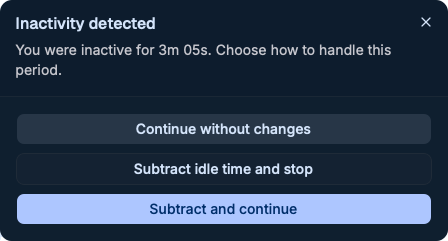
If idle detection is enabled and you stay idle beyond the configured threshold while the timer runs, Clepsydre shows an "Inactivity detected" dialog when you return, with three choices:
- Continue without changes — keeps all elapsed time.
- Subtract idle time and stop — removes the idle duration, then stops the timer.
- Subtract and continue — removes the idle duration and keeps tracking.
Sidebar mini widget
When the timer is running and you browse another screen (Statistics, History…), a mini widget appears in the sidebar with Pause / Resume and Stop buttons.
The mini widget's Stop button stops the timer without opening the logging dialog. To log your time, use the Stop button on the Timer screen.
Persistence
A running (or paused) timer is preserved even if you close and reopen the app: it will be restored on next launch.