Activity calendar
Navigate the calendar, read the colors, and customize working days.
The Activity Calendar shows your logged time day by day across the month. It is also the entry point to select a day (which feeds the other sections) and to customize your working days.
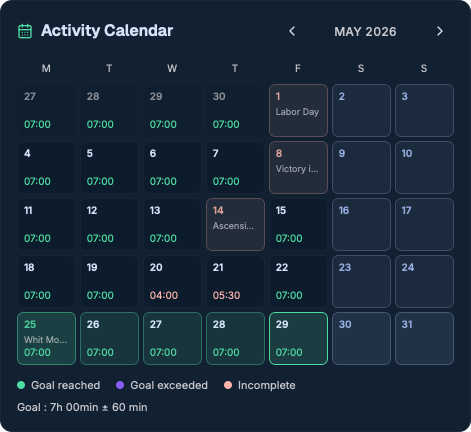
Navigation and selection
- The Previous month / Next month buttons change the displayed month.
- Left-click a day to select it. That day feeds the indicators, weekly activity, and the day timeline.
- Clicking a day belonging to another month switches the calendar to that month.
- The week of the selected day is highlighted.
When the month changes, the calendar automatically selects the most relevant day (today if visible, otherwise the first day with entries, otherwise the 1st of the month).
Cell content
Each day shows the day number and, where applicable:
- the logged time in
HH:MMformat when greater than 0; - the public holiday name (in French) with a tooltip.
Color coding (daily goal)
On working days, the color reflects how you met your goal:
- Goal reached — time within the
target ± tolerancerange; - Goal exceeded — above target + tolerance;
- Incomplete — below the minimum.
A legend line recalls the current goal, e.g. "Goal: 7h00 ± 60 min", configurable in the settings.
Day types
The calendar visually distinguishes weekends, public holidays, and days forced to working day or non-working day by your customizations.
Right-click actions
A right-click on a day opens a context menu to adjust its status.
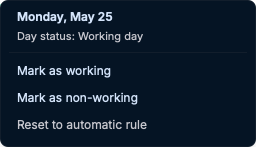
The menu header recalls the full date and the day status ("Working day" or "Non-working day"). Three actions are available:
| Action | Effect |
|---|---|
| Mark as working | Forces a day (weekend, etc.) to count as a working day. |
| Mark as non-working | Excludes a normally working day (time off, holiday, etc.). |
| Reset to automatic rule | Reverts to the automatic rule (disabled when there is no override). |
The menu closes on an outside click, the Escape key, a resize, or a scroll.
These customizations are saved locally, persist between sessions, and affect both the calendar colors and the Monthly Completion indicator.